How to Create Email Templates in Apple Mail
In this post (and accompanying video) I will show you an easy way to create reusable email templates in the latest version of Apple Mail. And I have to say, I like this way even better than my old way of using stationery. And, it will work with any version of Apple Mail.
✅ UPDATE Oct 2025: This process works like a charm in the latest macOS release Tahoe (v26). Also works in macOS Sequoia (v15), Sonoma (v13), Ventura (v13), Monterey (v12), Big Sur (v11), Catalina (v10.15), and earlier versions of macOS v10.
I have been using the stationery feature in Apple Mail as a way to create reusable email templates for quite some time now. It’s been a time saver! Unfortunately, Apple removed the stationery feature from the Mail app with the update in macOS Mojave. Now what? Check out the video tutorial and the instructions below.
Steps to create an email template
- Create a new email message. You can populate the To, Cc, Bcc, Subject and Body of the email with whatever you need to be part of your template. Formatting (bold, colors, etc.) all work fine. You can even add pictures and attachments as part of your template.
- Save the draft message. Close the draft and you will be prompted to save it.
- Create a new email folder called “Templates”. You can call it whatever you want, but this will be the home for all of your template messages.
- Move your draft message to the Templates folder. Right click on the draft, then select “Move to” and pick your Templates folder. NOTE: Dragging and dropping the draft to the Templates folder only seems to work with iCloud, so I suggest using the right-click method.
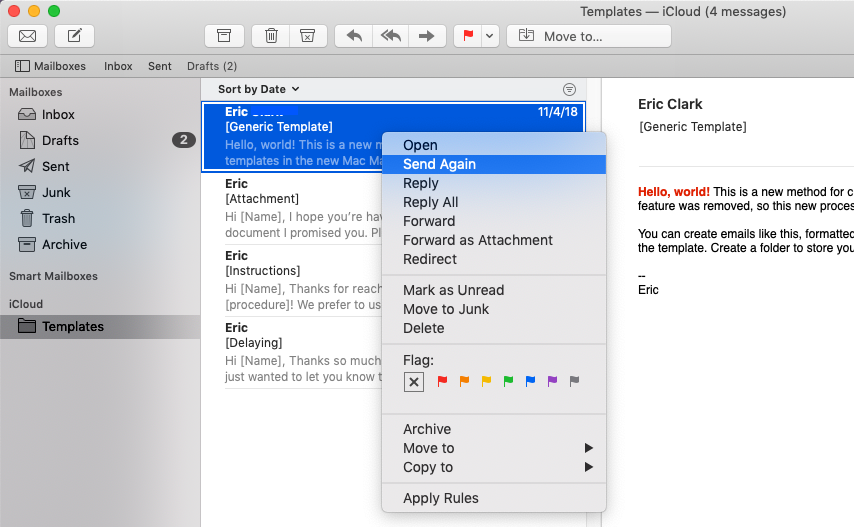
- In the Templates folder, right click on the message you want to use as a template and click “Send again”. The message will open as an editable message, so you can tweak and personalize it before sending it. The original is left in the Templates folder so you can reuse it again and again.
Quick and easy! I have found that this solution is even better than it was before with the stationery feature in older versions of the Mail App.
How to edit email templates
One more thing. What if you want to edit your email templates? It’s a great question, because you can’t edit them in the Templates folder. So here’s what you need to do:
- Drag and drop your template from the Templates folder to the Drafts folder.
- Open the message from the Drafts folder to edit it.
- Save your changes and then drag the message back to the Templates folder.
You might be wondering, why not just leave all of my reusable email templates in the Drafts folder. Great question. Unfortunately, the “Send again” option doesn’t exist in the Drafts folder. As soon as you send a draft email it’s gone. Not very reusable. Plus, I think it’s cleaner to keep templates separate in their own special folder.
I hope you found this helpful and saves you time. Please leave a comment below to share about your Apple Mail hacks and time saving tips.
84 comments from the archive
Carried over from the original site and kept as a record of the conversation.
Good tip. Thanks.
Computers are very good at repeating work for us. So when we make it easy for ourselves, we save time, energy and get to do other things.
That productivity increase is lost when vendors remove functionality that users grow to depend on. Kinda begs the question, why do I want to upgrade.
Your suggestion is like many others that have been adopted by end users - That is to make the user more resilient to the marketing whims of vendors.
Again thanks.
Great I have been looking for this for sometime
Just lost a great template dragging from drafts to templates folder. Totally disappeared. Thanks for the advice.
same thing happened to me.
The same thing happened to me! I found another workaround of temporarily changing where the draft is saved (https://support.apple.com/guide/mail/change-mailbox-behaviors-preferences-cpmlprefacctmbox/mac).
Strangely, while the "Templates" mailbox was set as the destination for Drafts, the mailbox itself disappeared from the list. Then, when I changed the destination back to "Drafts." the "Templates" mailbox appeared again containing the Draft I had just saved.
I posted another comment above explaining how I got around this - basically, make the Templates folder within "On My Mac". This worked for me, although you won't be able to access the template from any other computer.
I didn't have a "On My Mac" area and my template kept disappearing so I just sent the template to myself as an email, then dragged it into the Templates folder. I can just right-click and choose send again and it works like a charm, without disappearing.
That saved my day! Thanks! Your proposed solution looks very clean and effective. Also, as the Template folder would be synced to my gmail account, I can also use my templates created in Apple Mail in any other mail client via IMAP. Great!
Thank you! Very helpful!
Cool! Thanks!
Thank-you!! I was so disappointed that my stationery was gone- what a great and simple solution you have provided. I hadn't done any preparation before upgrading as I didn't know this feature would be removed but Was able to re-open some of my sent messages and salvage my templates that way. You have saved me hours of work- thanks!
Awesome! I'm glad it helped you out!
Thanks - very helpful.
Is there a way to reply to an email with a template?
I have the same question as someones else that didn't get a reply. Is there a way to use the template when replying?
Wil, unfortunately this doesn't work for replies.
Despite these tips on creating Templates, it is a workaround at best and really does not come close to the extremely user friendly Stationery that we had. I would prefer to have Stationery returned but thanks all the same.
Many thanks, spent hours trying to get a work-around, until I came across your video, problem solved.
This seems like a very good workaround that I keep running into one problem. Every time I want to drag a message from my templates folder to my drafts folder it goes into my archive folder instead and I can't figure out why!
I have a *lot* of folders so I call my templates folder "a-a-templates" so it sorts to the top of the list.
Thanks Eric, Just found your tip. I just tried it but after i moved the saved email in the Draft folder to the Templates folder, it disappears ? Have tried a few times, same thing happens
That's strange. Maybe try creating a new folder (name it something different) and see if the same thing persists.
I tried this as well but got the same result as Phillip. I noticed in your example that you appear to have your account backed up on iCloud. I have a Gmail account so I don't use iCloud for backups. Maybe that is what causes the differences in behaviour.
Hi Bill, I’ve tested this with Gmail and it works great. Even though I used iCloud in my example, you should be able to use any email provider.
I had the same problem when I had created my Templates folder within the folders list for the email address I was using (which is a G-suite address added to Apple Mail). The second time I tried it, I created my Templates folder within "On My Mac" (which is local), and it worked. So, I will only have access to the template on this particular computer, but at least I can use the workaround now.
This was very helpful. Thank you Eric!!!
Hi Eric,
thanks for your tips. Very helpful. Do these templates also work within Apple Mail that runs on an iOS device ( iPhone or iPad Pro)? Thanks in advance for a short reply. Best wishes Harold
Hi Harold, I have not tried this with iOS or iPad OS. Would be interested to know if you find a way to make it work.
It does not work :(((
What I do is create a draft, and every time I need to use it I: * open it * select all * copy * cancel (to resave original draft) * open a new email * paste This may also include attachments, but I only tried a pics file, which worked :)
Add-on: if you send it to yourself and then leave it in the inbox, using “send it again” seems to work on the iPad . . .
Can you explain more about what's not working? I use this daily and it continues to work great...
Awesome, made my life 10 times easier :-)
very clear and helpful.hanks
I finally managed to create a Templates folder. I created my preferred email form, saved as a draft, and moved it to Templates. It disappeared, never to be seen again.
Update: I found the proto-template in Archive, moved it into Templates, and then it showed up!
Fantastic tip! This is such a huge time-saver. Thank you so much!!
wonderful, tech tip just upgraded to a new iMAC that can run Catalina, and you absolutely correct that your solution is better then the old Mail Stationary (which often did not work as expected)
Thanks so much Eric, this is a very elegant solution. I really appreciate it :) Al
great stuff, wanted already change to SPARK or another mailprogram. can not understand why this got removed.. is it possible to attach PDFs and logos to the draft?
Hey Sandro, thanks! Yes, you attachments work in this process.
Ahh THANK YOU so much for this!! I can't believe I didn't try to figure this out forever ago, but it's going to be life changing moving forward. Appreciate your time and effort in sharing!!
Perfect, thanks I use Apple in french, and I need to use Rediriger instead of Réexpédier
A really super workaround
Thanks. Solved a vexing problem.
Thank you very much for your help :)
Man, what a great ideia! thank you very much!!!!
hi. This has been great and it works BUT I have a number of emails and the I want the templates to be sent consistently from 1 admin email address but when I do send again it defaults to my personal email? any idea on how I fix this? so the template is saved correctly ie correct sending email address but then when I do send again it defaults to my personal email
Hi Nilem, when you draft an email you need to select the from address you want to use. When you turn that into a template, it should save the from address you selected so that when you use "Send Again" it should use the email address you used when you created the template. That's been working for me. Good luck!
Thanks for this. Is there a way if then using the templates as a reply to an email, rather than as a ‘new’ email? Eg you want to reply to someone’s email using a template.
Many thanks
Unfortunately there's no way to reply with a template. If you find a way, please share it here!
use Signatures for that. I do.
Thank you for this tip, I appreciate all of the time you've just helped me save!
Great advise.Now we just miss the "send again" on Ipad. Then we can use the templates across our devices.
I'm looking for a way to create stationery for my Mail app that uses a photograph as the stationery, not formatted text. Is there a way to do that?
Fantastic, thanks for sharing this useful tip.
I have a problem though when i drag the new draft email into the template folder, it just disappears! Happens every time and regardless of which folder i drag the draft into? Any suggestions what i can do please?
I'm not able to replicate that issue.
The same happened to me. I have tried multiple times and it immediately vanishes.
@ian, that's what is happening to me too. It just goes away. Very weird.
I get exactly the same! I've done it a number of times and it vanishes. Cannot even spot where it's gone to!
Can you share more details please? I have tested this multiple times with multiple configurations, and it works flawlessly for me. What version of Mail are you using? What macOS are you using (note this is only for Mac, not iOS or iPad OS)? What mail service are you using (gmail, Microsoft 365, Yahoo, etc.)? What actions are you taking step by step?
Same thing happening to me as well, whereas your instructions used to work perfectly! Mail Version 16 macOS Ventura 13.2.1 Gmail mail service.
I am following your instructions exactly and as soon as I move the email from the drafts to the templates folder (have even tried creating totally new folders) the email instantly disappears. Would love to get this figured out because the templates are such a timesaver! Thanks... Amanda
Hey I figured this out! Right click on the draft and then use the "Move to" menu to move the message to the folder you want to keep it in. Apparently dragging and dropping the message only appears to work with iCloud mail. I tested it with my Gmail account and had the same issue you did, but when I used "Move to" instead of dragging and dropping it all worked great!
I'm totally late to the party... but... I was having this same problem and using Apple + Gmail and hopefully it'll help someone in the future!
My solution: make the draft in gmail, move it to your template folder in gmail, then quit and reopen Apple Mail and it should work perfectly!
I also had the same problem. Here is the solution. Click on the Templates folder. In the "sidebar" to the right of the left sidebar there is a small circle at the top right. Click on that and you'll see the previously sent templates.
Hey I figured this out. Right click on the draft and then use the "Move to" menu to move the message to the folder you want to keep it in. Apparently dragging and dropping the message only appears to work with iCloud mail. I tested it with my Gmail account and had the same issue you did, but when I used "Move to" instead of dragging and dropping it all worked great!
I had this issue and instead of selecting "Move To" try "Copy To," which will duplicate the draft email in your new Templates folder. Then you can delete the original draft and it should not affect the saved copy. This worked for me.
Many thanks for this time saving suggestion. Very useful!
Cheers, Don
This was helpful for sending new emails, however I want to be able to reply to the millions of spam I get everyday with a simply 1-click template reply. Is there a way to do this? Please let me know
Hey Paul, I'm not sure about a 1-click template reply for spam. What email service are you using? Google and Microsoft block a lot of spam. I personally would not reply to spam messages, it just validates you're there.
Great tip thanks for sharing this with us.
Thank you. Works well.
Eric,
Thanks a ton for taking this up and making it easy for us.
Tried this today September 11, 2024 and the only 'change' from my side in order to make your procedure work is to use "Copy to" Templates folder instead of "Move to". I noticed that once I 'move' the Draft to Templates folder it disappears in both the folders few seconds later. However, this doesn't happen (thankfully) with "Copy to".
Rest of the steps work exactly as you mentioned.
Cheers, Bhargav
Thank you for this!!!!
This is what worked for me as well. Still annoying not having a built-in templates feature :(
How can you get it to add the date to the subject line?
Eg. Time Worked {today date}
Just jumping on as another user who found this (really quite simple, yet cunning) process really helpful :)
This is an awesome idea. I've been trying to figure out how to send Christmas emails customized a few different ways from a Filemaker database. I wanted to include some graphics, a few different customized messages, and an attachment. You can do this with fancy plugins or HTML editors, but this is simpler and gets it done.
Now I just get Filemaker to export a PDF of a selected group with their email addresses and deliminators. Pick the corresponding template for that group and copy and paste the email address sting into the resent email.
Great idea, thanks and congrats!
I do something like this but I believe it's a few clicks faster: I create all my template emails as signatures! Just go into MAIL/SETTINGS/SIGNATURES and create all your templates there. Then, in mail click: New Email, Signatures drop down, select it and you're all set. The one negative against your method however, is that I'm pretty sure signatures do not sync with icloud, ex, between devices. I copy the signatures to my other laptop and they don't change very much so not too bad. Bob
Still the best solution, great and smart!
Timesaver, thanks!
Very good! Is there also a way/trick to introduce 'placeholders'?
If you want to skip the steps of dragging and dropping into different folders, just create a New Smart Mailbox and add "Template" in your subject line, then set the criteria for your Smart Mailbox to Subject contains Template. You can also choose Send Again straight from that Smart Mailbox.
sweet
Join the conversation