Google Workspace Cheat Codes: The Hidden URL Tricks for Docs, Sheets, and Slides
Whenever you open a Google Doc, Sheet, or Slide, take a quick glance up at your browser’s address bar.
Most people see a huge string of indecipherable alphanumeric gibberish that ends in /edit. They treat it like a static web address, something to copy, paste into an email or Slack, and forget about.
Power users see something completely different.
That URL is an interactive command line, and I’m going to give you some tricks that you’ll love to use.
Back around 2009, when I co-founded an e-commerce and web development company, I became an official Google Apps for Work reseller (long before it was rebranded as Google Workspace). I was completely enamored with the promise of real-time cloud collaboration. But over the years, advising teams and building operational workflows, I noticed a recurring friction point: people spend an enormous amount of time wrestling with menus and begging colleagues for basic hygiene.
“Please go to File > Make a Copy before you start typing!”
“Can you download this as a PDF and send it to the client?”
“How do I present this deck without everyone seeing my rough speaker notes?”
“How do I share this document so people can read it without all the editing clutter?”
The good news? You do not need third-party browser extensions, custom Apps Script code, or paid add-ons to solve these problems. You just need to know the right URL tricks. They are not hacks or workarounds. These are fully supported, built-in features of Google Workspace. They just feel like cheat codes because so few people know about them.
By editing a few characters at the very end of your document link, you can force duplicate copies, construct elegant template landing pages, trigger instant one-click PDF downloads, and strip away distracting menus and toolbars.
Here is your field guide to the hidden URL superpowers of Google Drive.
Golden Rule: Sharing Prerequisites
Before we swap a single character in the address bar, we have to talk about the number one trap that trips people up: access permissions.
None of these URL tricks bypass Google’s underlying security model. If your document’s sharing settings are locked down to “Restricted”, anyone who clicks your fancy modified link will hit a wall: the “You need access” permission screen.
For any of these cheat codes to work for external collaborators or team members:
- Click the blue Share button in the top right of your document.
- Under General access, set the link to either:
- Anyone with the link (for public documents, external clients, or community templates).
- Anyone in your organization with the link (for internal company templates and SOPs).
- Ensure their role is set to Viewer.
Pro Tip
Keep their role as “Viewer”! You do not need to grant Editor permissions for people to make copies or export PDFs. Leaving them as Viewers protects your master document while letting them fork their own private copy with one click.
Anatomy of a Workspace URL
Every document in Google Docs, Sheets, and Slides follows an identical URL structure:
https://docs.google.com/document/d/[DOCUMENT-ID]/edit?usp=sharingEverything after the long [DOCUMENT-ID] string is fair game. In standard usage, Google ends that path with /edit (often followed by query parameters like ?usp=sharing or #heading=h.xyz).
To use these cheat codes, simply delete /edit and everything that follows it, and replace it with one of the recipes below.
Cheat Code 1: Forced Copy (/copy)
Everyday Friction
You build a clean, beautifully formatted quarterly budget spreadsheet or project charter. You share the link with a dozen team leads and include clear, bold instructions in your email: “Please click File > Make a Copy before editing.”
Five minutes later, you open the document and someone is already typing their personal department numbers directly over your master formulas.
Cheat Code Formula
Replace /edit with /copy:
- Original:
https://docs.google.com/document/d/[ID]/edit - Cheat Code:
https://docs.google.com/document/d/[ID]/copy
https://docs.google.com/document/d/[ID]/copyWhat It Does
When someone clicks this link, they are not dropped into your document at all. Instead, Google presents a dedicated landing screen with a single, prominent blue button that reads: “Make a copy”.
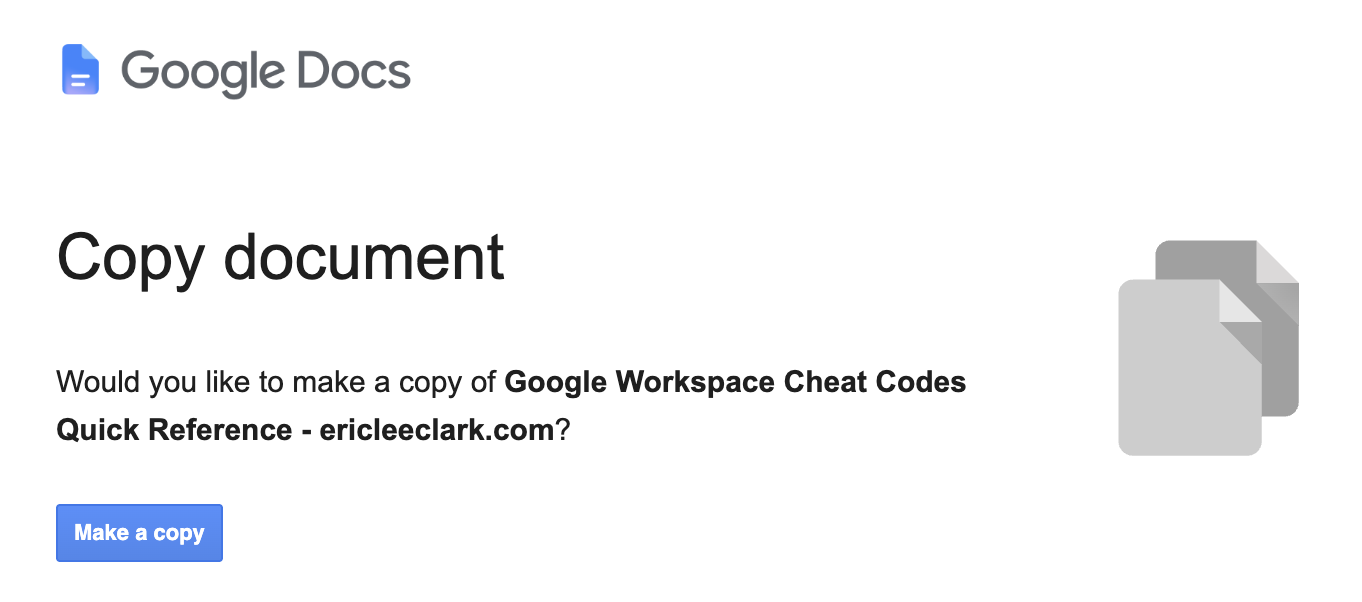
The moment they click it, Google automatically clones your file, deposits the duplicate directly into their personal Google Drive root folder, and opens their private version. Your master file remains completely untouched.
Cheat Code 2: Copy with Comments Preserved (/copy?copyComments=true)
Everyday Friction
The forced /copy trick is fantastic, but it has one frustrating blind spot: by default, Google strips out all comments and suggestions when creating the duplicate.
If you are an educator leaving grading rubrics in the margins, an engineering lead providing inline guidance on a spec template, or a manager giving instructional context to a new hire, standard /copy wipes those margin notes clean.
Cheat Code Formula
Append ?copyComments=true immediately after /copy:
https://docs.google.com/document/d/[ID]/copy?copyComments=trueWhat It Does
Google prompts them to make a copy just like Cheat Code 1, but when the cloned document opens in their Drive, every open comment thread, footnote annotation, and margin suggestion is fully preserved.
It turns a static document into a guided, interactive worksheet.
Cheat Code 3: Polished Template Landing Page (/template/preview)
Everyday Friction
While /copy is great for internal utility, it can feel a bit aggressive. When someone clicks a /copy link, they have to blind-copy the file into their Drive before they can even read what is inside. If they just wanted to see whether the template fits their needs, they end up cluttering their Drive with unwanted “Copy of…” files.
Cheat Code Formula
Replace /edit with /template/preview:
https://docs.google.com/document/d/[ID]/template/previewWhat It Does
This is the cleanest, most professional link you can share with clients, customers, or public audiences.
Instead of an abrupt prompt, it opens a nice, read-only preview of the entire document. In the upper right-hand corner sits a crisp blue button labeled “Use Template”.
The visitor can scroll through the document, inspect the layout, and review the contents. If they want to use it, clicking “Use Template” immediately spins up a fresh copy in their Drive.
If you publish public resources, lead magnets, or company-wide SOPs, always use /template/preview instead of raw /copy. It is simply a much better user experience.
Cheat Code 4: Stripped-Down Reading Modes (/preview, /view, and ?rm=minimal)
Everyday Friction
You want a client, executive, or colleague to review a project proposal or strategic brief. But when they open a standard Google Docs link, half their display is hijacked by editing toolbars, comment sidebars, ruler bars, and real-time cursor bubbles showing everyone else in the document.
It feels like an unfinished workshop instead of a polished deliverable. Even worse, if they have edit rights, an accidental keystroke can inadvertently delete a paragraph.
Depending on what you want the reader to experience, you have three distinct ways to clean up the interface:
Option A: Full Embedded Reader (/preview)
Replace /edit with /preview:
https://docs.google.com/document/d/[ID]/previewWhat It Does
Google renders the document in a completely headless reader view. Every piece of editor chrome (menus, formatting bars, rulers, and sidebars) disappears entirely. The document looks like a published digital whitepaper or reading manuscript. It is also the ideal URL format if you ever need to embed a Google Doc inside an <iframe> on an internal portal.
Option B: Streamlined Interface (/view?rm=minimal)
Keep the standard document view, but strip off the heavy toolbars by using Google’s rm=minimal (Render Mode = Minimal) parameter:
https://docs.google.com/document/d/[ID]/view?rm=minimalWhat It Does
This hides the menu bar (File, Edit, View, Insert…) and the icon formatting bar, but preserves standard document navigation and scrolling. It provides a clean, distraction-free environment for reading or presenting without losing the native Google Docs document frame.
Option C: View-Only Safety Lock (/view)
If you want to share a document with someone who already has editing permissions on the file, but you want them to open it in read-only mode by default:
https://docs.google.com/document/d/[ID]/viewWhat It Does
It forces the document to open in viewing mode rather than editing mode. This prevents accidental edits, stray keystrokes, and inadvertent formatting changes while reviewing.
Pro-Tip: Google Slides Presentation Mode
This trick works wonders on Google Slides. If you send a colleague a standard Slides link, it opens in the editor, showing the slide filmstrip on the left and speaker notes on the bottom.
If you change the URL ending to /preview:
https://docs.google.com/presentation/d/[ID]/previewIt opens straight into full-browser presentation mode. No sidebars, no speaker notes, no clunky “View Slideshow” button clicks required.
Cheat Code 5: Instant 1-Click PDF Download (/export?format=pdf)
Everyday Friction
Think about how many times a week you perform this sequence:
- Open a Google Doc or Sheet.
- Click
File > Download > PDF Document (.pdf). - Wait for the download to finish.
- Locate the file in your
Downloadsfolder. - Upload or email the PDF to someone who requested it.
It is tedious, repetitive friction.
Cheat Code Formula
Replace /edit with /export?format=pdf:
https://docs.google.com/document/d/[ID]/export?format=pdfWhat It Does
Clicking this link bypasses the browser editor completely. Your browser immediately compiles the document and initiates a direct download of a freshly rendered PDF.
Where to Use This:
- Company Intranet & Portals: Bookmark links to your employee handbook, brand guidelines, or expense policies using this URL. Whenever an employee clicks it, they get an instant PDF of the latest, live version.
- Client Invoices & Estimates: Keep your live master invoice in Sheets, but send clients this link. They click and instantly get a clean, ready-to-archive PDF.
- Slack / Chat Shortcuts: Share direct-download links with teammates instead of sending raw files back and forth.
Other Formats
You can also change the query parameter to export in different formats:
- Word document:
/export?format=docx- Excel spreadsheet:
/export?format=xlsx- OpenDocument Text:
/export?format=odt- Plain text:
/export?format=txt
Cheat Code 6: Browser Omnibar Shortcuts (.new + Multi-Account Routing)
All of the tricks above manipulate existing documents. But what about creating new ones without clicking through Google Drive folders?
I love this shortcut. Honestly, I use it a ton more than I ever expected. My muscle memory now is just tapping Command + T (or Ctrl + T on Windows) to pop open a fresh browser tab, typing doc.new or sheet.new, and hitting Enter. You are instantly typing in a clean workspace in under two seconds. No clicking through Drive, no hunting through folder trees, no waiting around.
Here are the primary creation shortcuts:
doc.newordocs.new(Google Docs)sheet.neworsheets.new(Google Sheets)slide.neworslides.new(Google Slides)form.neworforms.new(Google Forms)site.new(Google Sites)
Multi-Account Routing: Take It to the Next Level
If you are like me, you juggle multiple Google identities: a corporate Workspace account, a personal Gmail account, and maybe a client or volunteer organization account.
By default, typing doc.new or doc.new/1 creates a document under your primary (default) account, the very first account you logged into during your browser session. If you want to target secondary accounts without constantly switching profiles in the top right, append a number corresponding to your login order:
doc.newordoc.new/1(Creates a document in your primary/default account, the first one you logged into)doc.new/2(Creates a document using the secondary account you logged into during that session)doc.new/3(Creates a document using the third account you logged into)sheet.new/2(Creates a spreadsheet using your second account)
Note on Browser Sessions
This is based on your browser session login order, not different browser profiles. If you log into your personal Gmail first and your work Workspace account second,
/1will target personal and/2will target work for that session.
Pro tip: If you do this a lot, create bookmark shortcuts in your browser’s bookmark bar. You can pin bookmarks using the explicit authuser parameter so you never have to remember the index number:
https://docs.new?authuser=your-work-email@company.comClick that bookmark, and you bypass account confusion forever.
Live Demo: Test It Yourself
Want to see how these URL endings behave before you start sharing them?
I created a public Google Doc with a quick reference of every trick in this post. Click through each link below to see the different experiences firsthand:
- Test the Forced Copy (Prompts you to make a copy into your Drive)
- Test the Polished Template Preview (Clean preview with the “Use Template” button)
- Test the Distraction-Free Reader Mode (Completely stripped of toolbars and sidebars)
- Test the Minimal Menu View (Keeps the page layout, hides the top menus)
- Test the Direct 1-Click PDF Download (Triggers an immediate file download)
(If you have your own public template, simply swap out my document ID with yours!)
Quick Reference Summary Table
Bookmark this table the next time you need to share a file with precision. You can also open the Quick Reference Google Doc to grab a copy for your own Google Drive:
| Your Objective | Take This Base URL… | …And Swap the Ending To: | The Result |
|---|---|---|---|
| Force Make a Copy | .../edit |
.../copy |
Prompts user with a single blue “Make a copy” button. |
| Copy With Comments | .../edit |
.../copy?copyComments=true |
Clones file and preserves all marginalia and comment threads. |
| Polished Template Preview | .../edit |
.../template/preview |
Clean full-page preview with an optional “Use Template” button. |
| Distraction-Free Reader | .../edit |
.../preview |
Strips all toolbars, menus, and sidebars for clean reading. |
| Minimal Menu View | .../edit |
.../view?rm=minimal |
Hides menu bar and ribbon while preserving document scroll. |
| View-Only Safety Lock | .../edit |
.../view |
Opens file in view mode to avoid accidental text edits. |
| Direct PDF Download | .../edit |
.../export?format=pdf |
Bypasses editor; triggers instantaneous PDF file download. |
| Instant New Document | Address bar | doc.new (or doc.new/2) |
Instantly generates a blank document under your chosen profile. |
Automate This: Custom Gemini Skill
If you find yourself manually editing URLs frequently, or if you have a batch of links you need to convert for a team wiki, you do not have to do the string surgery by hand.
I built a custom Gemini Skill called the Workspace URL Wizard (as Google transitions from Gems to Skills). You can paste any Google Docs, Sheets, or Slides link, even a long list of them, and get a clean table with every formatted URL variant ready to copy.
You can set this up in your own Gemini account in about 30 seconds:
- Open Gemini’s skill builder.
- Copy the instructions from this public Google Doc (yes, using the template preview trick!).
- Paste them into the skill instructions field and name your skill Workspace URL Wizard.
- Whenever you are in Gemini, simply invoke it with the slash command
/workspace-url-wizardand paste your link.
Gemini will instantly parse your link and hand you back every URL variation in a clean table, ready to paste.
Small Tweaks That Compound
None of these individual tricks will radically change your life overnight. But productivity rarely hinges on massive, sweeping revolutions.
It is built on the accumulation of small, frictionless habits.
When you eliminate the back-and-forth of “Hey, can you make a copy before editing?”, or avoid exporting and re-uploading three dozen PDFs every week, you reclaim valuable mental energy and focus. More importantly, it brings polish and professionalism to the way you present your work to colleagues and clients.
Try one of these URL endings on your next shared document. Once you start using them, life without them feels like dial-up.
This is Part 1 of a series on Google Workspace power moves. In Part 2, we will tackle Gmail and Calendar, exploring hidden search operators that unearth lost gigabytes of storage, inbox triage shortcuts, and meeting links that eliminate scheduling chaos.
Which of these URL tricks was new to you? Do you have a favorite Workspace hack of your own? Drop a comment below, I would love to hear how you use it.
Join the conversation